Crop and split
Crop
Using the slider, you can define the part of the selected track that you want to keep. The start and end markers on the map and the statistics and elevation profile are updated in real time to reflect the selection. Alternatively, you can drag a selection rectangle directly on the elevation profile. Validate the selection when you’re satisfied with the result.
Split
To split the selected track into two parts, tap or click on one of the split markers displayed along the track.
On the website: Hover over the track on the map to show scissors at the cursor position, then click to split at that specific point.
In the app: Tap on the track to split at that location.
You can choose to split the track into two GPX files, or keep the split parts in the same file as tracks or segments.
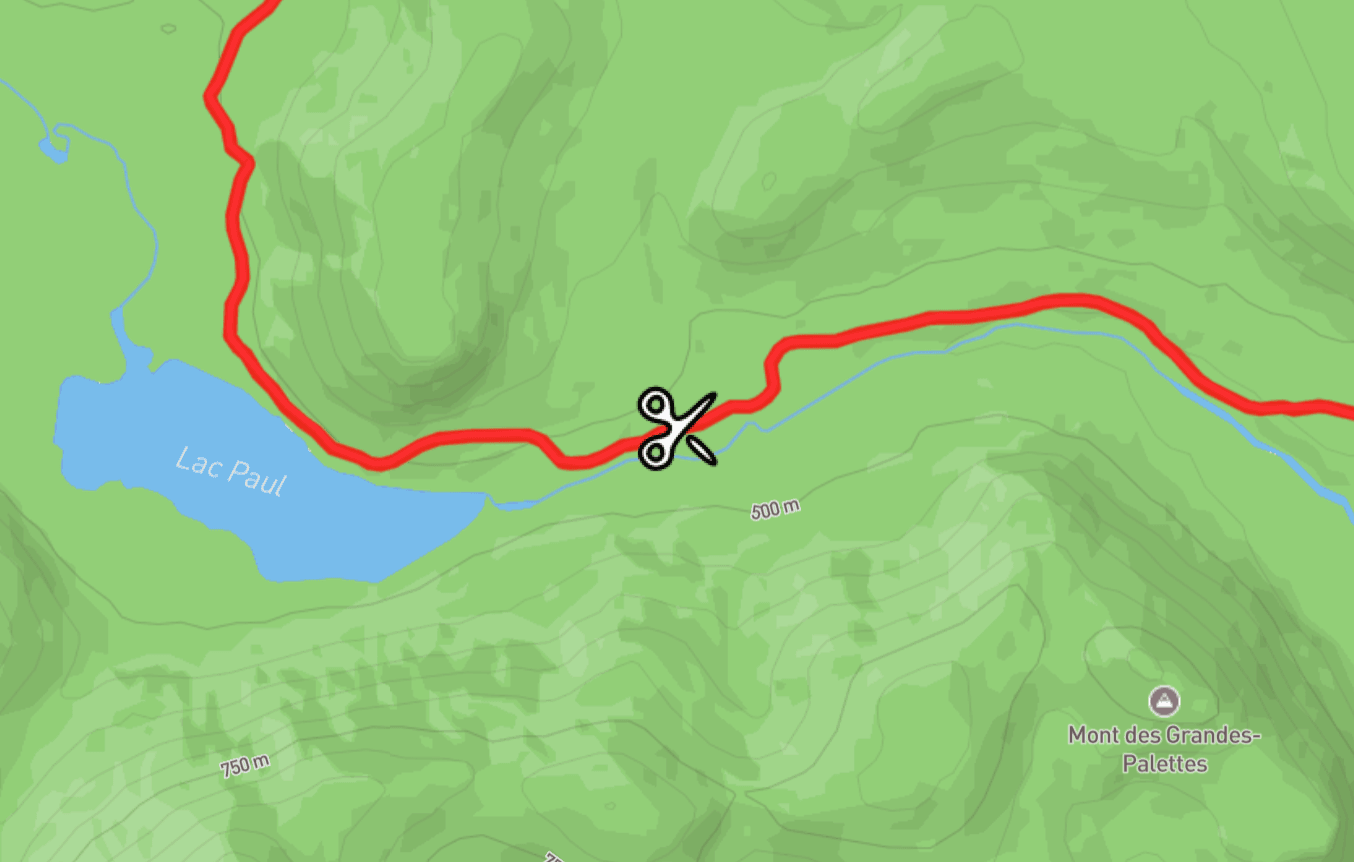
Hovering over the selected trace turns your cursor into scissors.